TaskFANG · Windows utility
Coming soon to Microsoft StoreBatch PDF Printer
The whole stack in one click.
Choose your PDFs, check their order and send them to your printer with one set of settings.
Price to be announced before release. One-time purchase of the version you buy, through Microsoft Store. The license is personal and for the purchaser's use only.
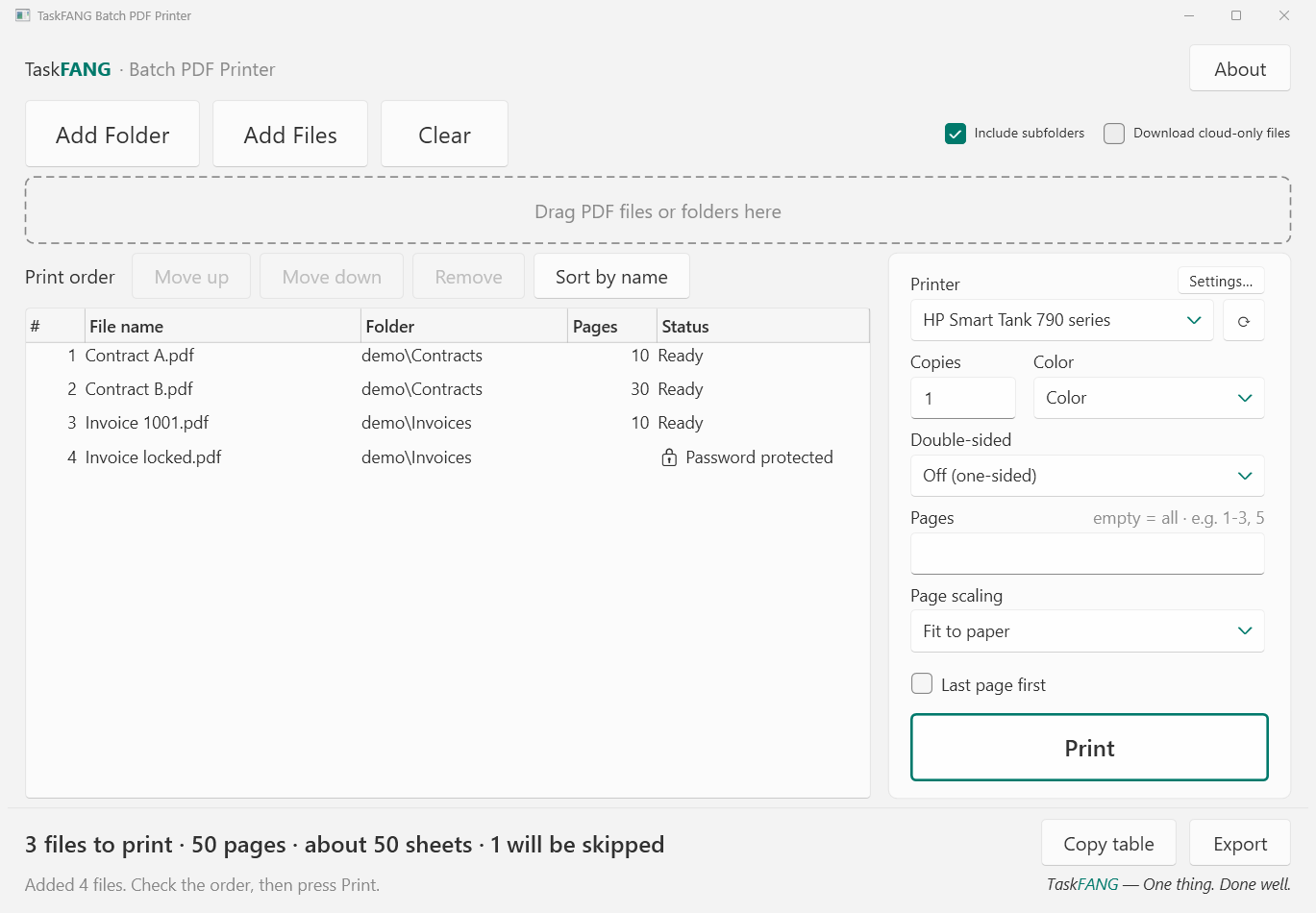
Inside the app
Who it's for
Law offices
Print a full case file, folder by folder, in the order it was filed.
Accountants
Print a client's invoices and statements in one run, double-sided and in black and white.
Schools and teachers
Print a set of worksheets for the whole class: 30 copies of each, every copy complete.
Offices and print rooms
Send hundreds of PDFs to the printer without opening a single one.
What it does
- Prints every PDF in a folder, including subfolders, or files you pick one by one.
- Prints in the order you see: sorted by folder and name (file2 before file10), and you can move files up or down.
- Shows the pages and sheets before you print, and asks you to confirm.
- Copies, double-sided, color or black and white, and the printer's own settings (tray, quality, stapling).
- Page range for every file, for example only the first page of each.
- Fit to paper, and landscape pages are turned automatically.
- Last page first, for printers that stack pages face up, so the stack comes out in order.
- Skips damaged and password-protected files without stopping, and stops at once if the printer reports a problem.
- A print report: what was sent, skipped or not sent, to Excel or CSV.
- Never changes your files. It only reads them.
Step-by-step guide
-
Add your PDFs
Drag a folder (or several, or single PDF files) onto the window, or click Add Folder or Add Files. Nothing prints yet: the files are only checked and their pages counted.
-
Check the order
Files print from top to bottom. Select files and use Move up or Move down, take files off the list with Remove, or click Sort by name to restore the folder-and-name order.
-
Choose how to print
On the right, choose the printer, the number of copies, color or black and white, and double-sided. In Pages type a range such as 1-3, 5, or leave it empty for all pages. Settings… opens the printer's own options. The app remembers your choices.
-
Press Print
A summary shows how many files, pages and sheets are about to print, on which printer. Press OK to start. The bar at the bottom shows progress; Cancel or Esc stops it.
-
Keep a record
Each file shows its status. Export saves a print report to Excel or CSV, and Copy table copies the list to paste into an email.
Understanding the results
| Status | What it means | What you can do |
|---|---|---|
| Ready | The file was checked and will be printed. | Nothing. |
| ✓ Sent to printer | Every selected page reached the Windows print queue. | Collect your pages. If a page is missing, check the printer itself (paper, ink). |
| – No pages in range | The page range selects no page of this file, for example page 5 of a 3-page file. | Change the range, or leave it empty for all pages. |
| Not sent | Printing was stopped before this file. | Press Print again when ready. |
| ✗ Printer error | The printer reported a problem while this file was being sent. Printing stopped. | Check power, cable and paper, then print again. |
| 🔒 Password protected | The PDF needs a password to open. It is skipped. | Print it from your PDF reader with its password. |
| ⚠ Damaged | The file is not a valid PDF. It is skipped. | Ask the sender for a new copy. |
| ☁ In cloud (not downloaded) | A OneDrive file that is only online. It is skipped. | Turn on Download cloud-only files and add it again. |
Sent to printer means the file reached the Windows print queue. Whether the paper comes out depends on the printer, so the app never says “printed”.
Questions
Does it change, move or delete my files?
No. Batch PDF Printer only reads your files. The only file it ever writes is a report you ask for.
Does it upload my files?
No. Your files stay on your PC; TaskFANG never uploads them, and there is no account.
Can I print just the first page of every file?
Yes. Type 1 in Pages. Any range works, for example 2-4 or 5- (page 5 to the end).
My stack comes out in reverse order. Why?
Many inkjet printers put each page face up on top of the previous one, so the last page ends on top. Turn on Last page first and the stack comes out in order, page 1 on top.
Is the text sharp?
Yes. Pages are sent to the printer as they are, not as photos, so text and lines stay sharp.
Is it a subscription?
No. You pay once in the Microsoft Store and keep it.
Requirements
- Windows 11, 64-bit, with a printer installed in Windows.
- Installed from the Microsoft Store.
- Interface in English. File and folder names in any language work fine.
Need help? See Support.