TaskFANG · Windows utility
Coming soon to Microsoft StorePDF Page Counter
Count every PDF page. Skip the manual work.
Count pages per file, per folder and in total, with paper sizes and a double-sided sheet estimate.
Price: $4.90, one-time purchase of the version you buy, through Microsoft Store. The license is personal and for the purchaser's use only.
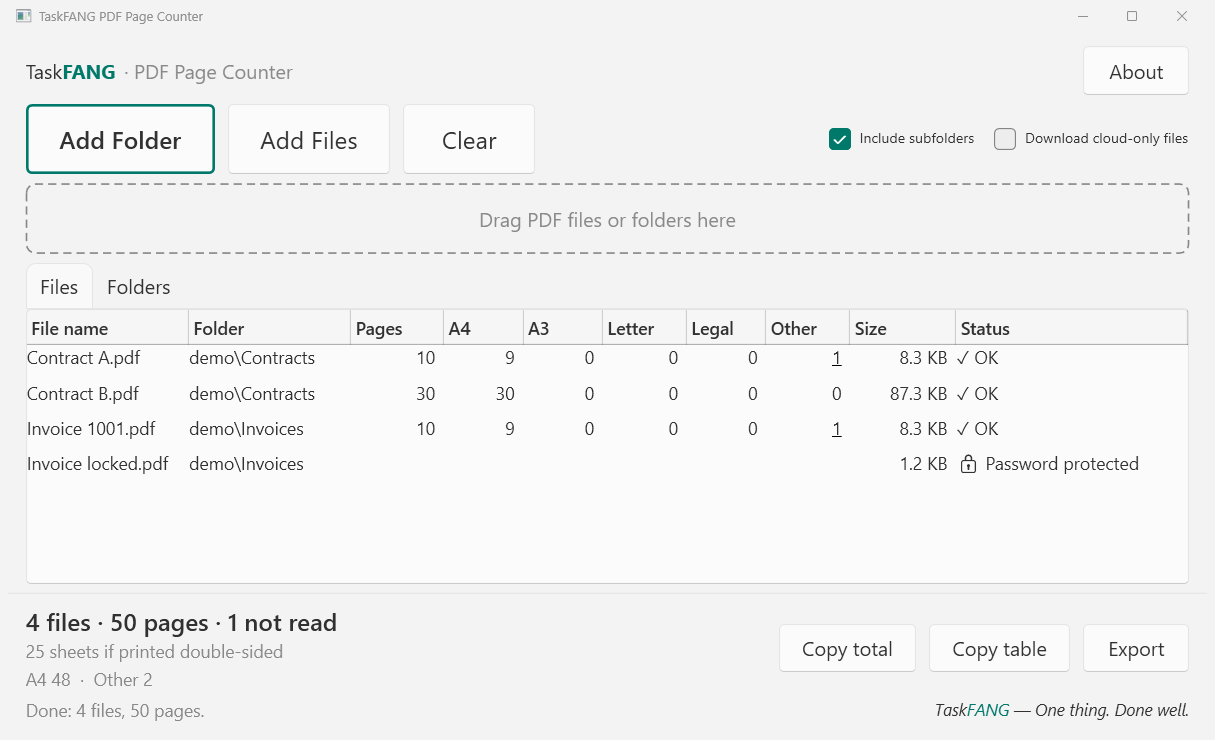
Inside the app
How fast is it?
Fast enough that you never wait for it.
1,000+
files per second on a regular PC
Even folders with thousands of PDFs are counted in seconds.
Big scans
no problem
Large scanned files are counted almost instantly.
Never stuck
stop any time
The window stays responsive while it counts.
Who it's for
Law offices
Know how many pages a case file has before copying, billing or filing it.
Print and copy shops
Quote a print job in a minute: total pages, paper sizes and sheets if printed double-sided.
Accountants and offices
Count scanned documents across many client folders, with a total per folder.
Archives and researchers
See how much material a collection holds, including old scans in unusual sizes.
What it does
- Counts the pages of every PDF in a folder, including all subfolders.
- Shows pages per file, per folder and in total.
- Splits pages by paper size: A4, A3, Letter, Legal and Other. For Other, hover to see the real size in cm and inches.
- Estimates sheets if printed double-sided.
- Marks damaged, empty and password-protected files without stopping.
- Warns you if a folder could not be opened, so you never trust an incomplete total.
- Exports to Excel (.xlsx) or CSV, or copies the table to paste anywhere.
- Very fast: more than 1,000 files per second, with no limit on the number of files.
- Never changes your files. It only reads them.
Step-by-step guide
Five minutes to learn, a few seconds per job after that.
-
Open PDF Page Counter
After installing it from the Microsoft Store, open it from the Start menu. The window opens empty, ready for files.
-
Add your PDFs
Drag a folder (or several, or single PDF files) from File Explorer anywhere onto the window. Or click Add Folder, the button with the orange frame, and choose a folder. Add Files lets you pick individual PDFs.
Include subfolders is on by default, so every PDF inside the folder is counted, however deep.
-
Read the total
Counting starts immediately and usually takes a few seconds. At the bottom left you'll see the total, for example “9 files · 97 pages”, then the double-sided sheet estimate and the paper sizes.
If a folder could not be opened (for example because you don't have permission), an orange warning tells you the total may be incomplete. Hover over it to see which folders.
-
Look closer
The Files tab lists every PDF with its pages and paper sizes. Click a column title to sort; double-click a file to open it. Right-click a file for Show in folder or Copy path.
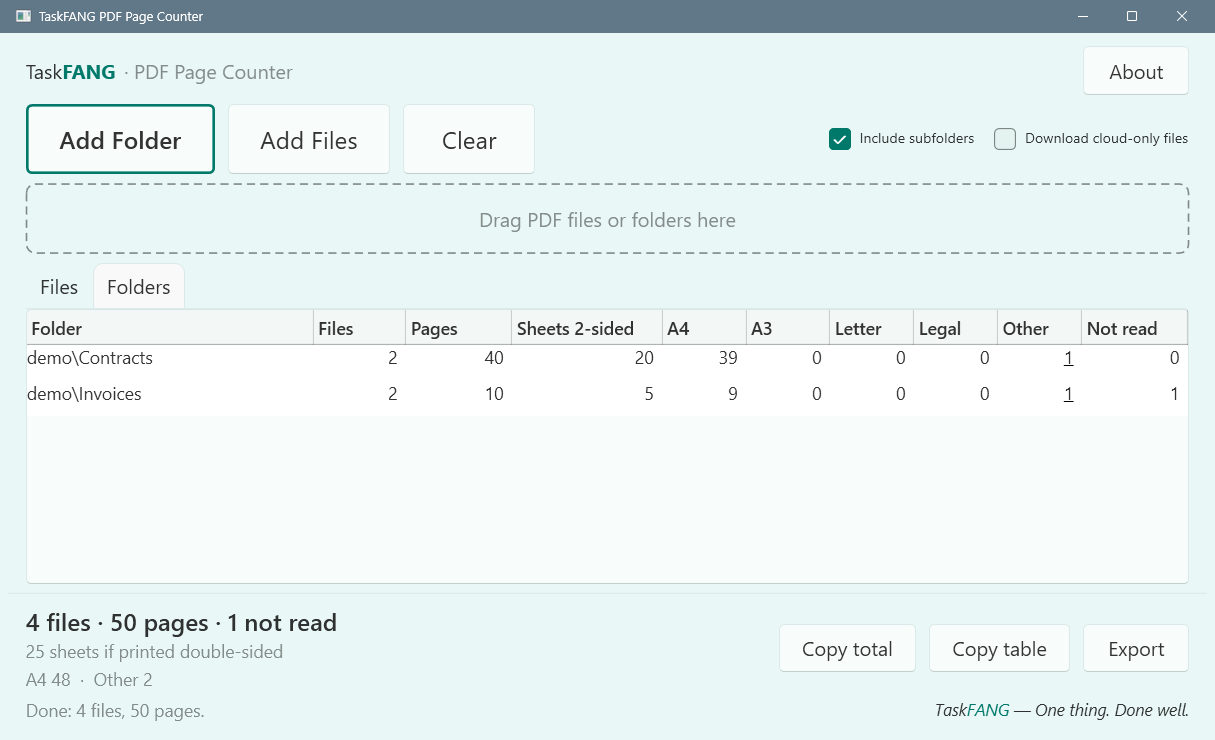
The Folders tab shows a total for each folder. An underlined number in the Other column means there is more to see: hover over it for the real page sizes.
-
Save or share the result
Export saves an Excel workbook (Summary, Folders and Files sheets) or a CSV file. Copy table copies the table on screen, ready to paste into Excel or an email. Copy total copies just the number of pages.
-
Start over
Click Clear to empty the list. Adding the same folder again never counts a file twice.
Understanding the results
Every file gets a status. Only files marked OK are counted in the total; the others are listed so you know exactly what was left out.
| Status | What it means | What you can do |
|---|---|---|
| ✓ OK | The file was read and counted. | Nothing. |
| 🔒 Password protected | The PDF needs a password to open. | Open it with its password in your PDF reader to see its pages. |
| 🔒 Unsupported protection | The PDF uses a protection method that cannot be read. | Check it in the program that created it. |
| ⚠ Damaged | The file is not a valid PDF, or it is badly damaged. | Try opening it in your PDF reader; ask the sender for a new copy. |
| ⚠ Empty file | The file has a size of 0 bytes. | It contains nothing; usually a failed download or copy. |
| ✗ Can't open | Windows did not allow reading the file, for example because another program locked it. | Close the program using it and add the folder again. |
| ☁ In cloud (not downloaded) | A OneDrive file that is online-only and not on this PC. | Turn on Download cloud-only files to include it. OneDrive will download it first. |
| ⚠ Over 4 GB | The file is too large to read. | Very rare for PDFs; split the file if you need it counted. |
Paper sizes
A page counts as A4, A3, Letter or Legal when it is within about 3 mm of that size, in either orientation. Everything else is Other. Scans are often slightly off-size, so pages within about 5 mm of each other are grouped together when you hover over an Other number.
The program reports the page size stored in the PDF, which is the size it prints at. A scanned folio page that was saved smaller will show its saved size.
Double-sided sheets
An estimate of how many sheets of paper you need when printing double-sided. Each file starts on a new sheet, so a file with an odd number of pages uses one extra sheet. It assumes everything prints on one paper size or is scaled by the printer.
Questions
Does it change, move or delete my files?
No. PDF Page Counter only reads your files. The only file it ever writes is an export you ask for.
Does it upload my files or need the Internet?
No. Your files stay on your PC; TaskFANG never uploads them, and there is no account. The only exception is your own choice to include online-only OneDrive files, in which case OneDrive downloads them to your PC first.
Is it a subscription?
No. You pay once in the Microsoft Store and keep it.
How many files can it handle?
There is no limit. It counts more than 1,000 files per second, so even very large folders take only seconds.
Why does a file say “Password protected”?
Its author locked it with a password needed to open it. Without the password no program can read its pages. PDFs that are only restricted from printing or editing (but open without a password) are counted normally.
Are hidden files counted?
Yes, hidden PDFs are counted. Windows system folders such as the Recycle Bin are skipped.
Can I stop a long count?
Yes. Click Cancel or press Esc. Files already counted stay in the list.
Requirements
- Windows 11, 64-bit.
- Installed from the Microsoft Store.
- Interface in English. File and folder names in any language, including Hebrew, Arabic and Chinese, work fine.
Need help? See Support.