TaskFANG · Windows utility
Coming soon to Microsoft StorePDF Split by Name
One PDF of many people. One file per person.
Open one PDF that holds many people, mark the name on one page, check the preview, and get a separate PDF for each person, named after them.
Price: $24.90, one-time purchase of the version you buy, through Microsoft Store. The license is personal and for the purchaser's use only.
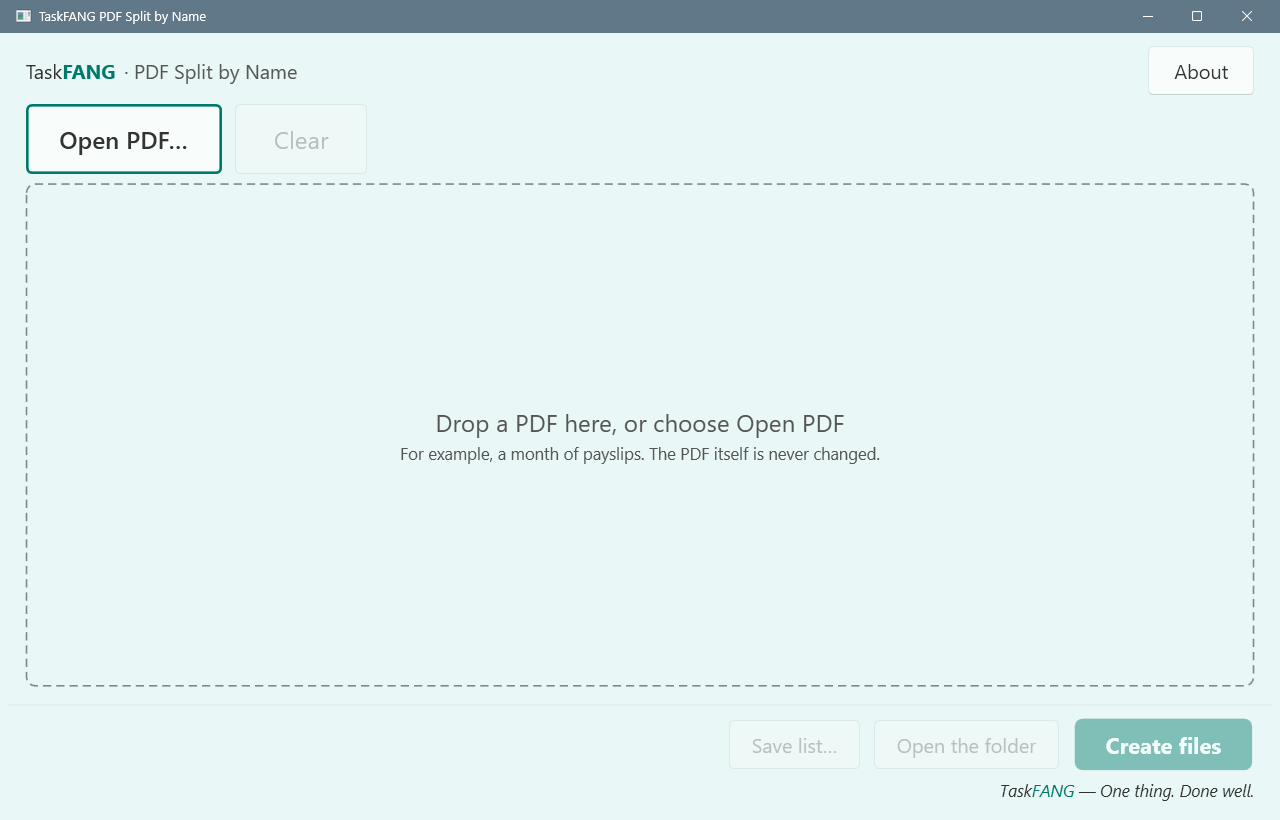
Inside the app
Who it's for
Payroll and HR staff, bookkeepers and offices that get one long PDF from their software, such as payslips, statements or certificates for many people, and need to give each person only their own pages.
What it does
- Reads the text in the box you draw, on every page: a name, an employee number or both, in English, Hebrew or mixed.
- Keeps a person's consecutive pages together in one file.
- Never decides on its own about a page without a name: you choose to attach it to the person before or after, give it its own file, or leave it out. One button attaches them all to the person before.
- Marks a name that appears again later in the file. You keep it as a second file or combine the pages into one.
- Lets you add fixed text to every file name, such as the month (October 2026).
- Remembers the box for next month.
The original PDF is only read. It is not changed and never leaves your PC.
Step-by-step guide
- Drop the PDF on the window, or use Open.
- On the sample page, draw a box around the name.
- Look through the preview: every file it will make, its pages, and any page that needs a decision.
- Decide about the pages without a name, or click the button that attaches them all to the person before.
- Click Create and choose the folder. Existing files are never overwritten: a new file gets " (2)" in its name instead.
The files
One PDF per person, named after the text in the box, with the pages in their original order. After the run you see what was made, which pages were left out and any warnings, and you can save the list to an Excel workbook. If you cancel, the files already made stay and the list says what was not made.
Questions
Does it work with scanned PDFs?
No. It reads the text stored in the PDF and does not use OCR. A scan with no text is refused; a page without text in an otherwise readable file is shown as a page that needs your decision.
Which PDFs are refused?
Password-protected or encrypted PDFs, PDFs with fill-in form fields and digitally signed PDFs, because splitting them would drop the protection, break the fields or invalidate the signature. Damaged files are refused too. Each case is explained in the window.
What if the name is in a different place on some pages?
Those pages read as "no name" and are shown in the preview for your decision. Nothing is assigned to a person without your choice.
"DANA LEVI" and "Dana Levi" on different pages?
They are treated as two different people until you decide otherwise. The preview shows both, so you can see it before any file is made.
How large a PDF can it handle?
It was tested with 20,000 pages split into 9,460 files. The largest file depends on the memory of your PC; if a file is too large, the app says so before it starts.
Requirements
Windows x64. Final supported Windows versions will be confirmed at release. A PDF that contains text (not only scanned images).